Set up Material Design with Jetpack Compose
Part of the series
Create an Android appNow that we have decoupled our UI from the logic, it’s time to do something about the look and feel of our app. Right now it’s an ugly app with just some basic text on a white background.
However, because right now our app only consists of text, we’ll be adding a button in this blogpost to actually see the changes that Material Design brings. Because the text will look pretty much the same, but a button will have a background color.
Add the Material Design dependencies
Inside the build.gradle.kts in the app module, we’ll need to add a dependency for Material Design. Inside the dependencies block remove the old androidx.compose.foundation:foundation dependency and replace it with androidx.compose.material3:material3.
dependencies {
    // ...

    // Jetpack compose
    implementation("androidx.activity:activity-compose:1.8.2")
    implementation("androidx.compose.material3:material3") // <- Update this dependency

    // ...
}
Now execute a gradle sync and let’s start updating the UI.
Use a component from Material Design
Let’s update our Main composable in the main.kt file by replacing the “ with the new Text component from Material Design and adding a Button where we’ll add the on click handler to change our text.
@Composable
fun Main(
    viewModel: MainViewModel
) {
    Column {
        Text(viewModel.displayText.collectAsState().value)
        Button(onClick = viewModel::updateText) {
            Text("Click me")
        }
    }
}
We’ve wrapped the Text and Button component inside a Column component so the two components we want to display will be displayed below each other instead of on top of each other.
We still see that ugly title bar with My Application, to remove that we’ll need to update our manifest.xml and add the android:theme property to the activity tag.
<!-- ... -->

<activity android:name=".MainActivity"
    android:exported="true"
    android:theme="@android:style/Theme.Light.NoTitleBar">
    <intent-filter>
        <action android:name="android.intent.action.MAIN" />
        <category android:name="android.intent.category.LAUNCHER" />
    </intent-filter>
</activity>

<!-- ... -->
Set the android:theme to @android:style/Theme.Light.NoTitleBar to get a light theme without the title bar, or to @android:style/Theme.Dark.NoTitleBar to get the same result with a dark theme. For this, you’ll need to update the text color of the Text component otherwise it won’t be visible. You can do this by simply passing the color = Color.White parameter to the composable.
Run the application
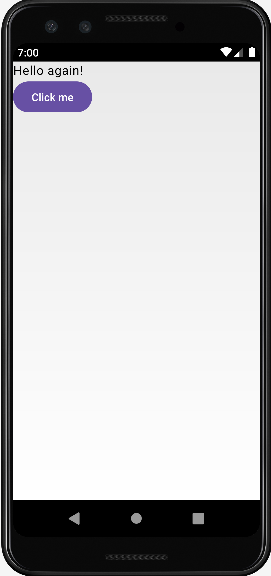
Now that we’ve updated our app with a button and use Material Design, we can run the app. It now displays the same text as before, but with a button using the Material Theme. And, if that’s not all, that ugly title bar is gone as well. Giving us full control over the screen with our own composables. In the following post, we’ll be updating the text to make use of translations when a user has selected a different language than English.
- The entire application can be found on github.com/bartkessels/basic-android-app
- Just the code that’s been created in this post can be found in the tutorial/setup-material-design branch